Multiple Whatsapp by  Rooting An Android

Hello friends today i am going to share the method to run multiple whatsapp acoount in an android(after rooting)


Personally tested on managing 4 whatsapp accounts simultaneously in my single android phone. And it worked smoothly using this android trick. You can maintain as many as you like. There are some ways to use multiple whatsapp accounts in dual sim. But the method I’m going to show you in a minute works even with single sim phones. But before proceeding, let me tell you that this method works only on rooted android phones. It’s because we are going to utilize an app for this trick and the app works only in android phones with root access. Unless a non-root version of this app is released, this trick can’t be used in all android phones. Root your phone so that you can take advantage of this trick. Not just for this one trick but for all the things rooting has to offer to make your life exciting!


Android trick to run multiple whatsapp account 
Using Switchme app

Requirements :
  • You must have rooted your device (mobile/tablet). Without root access you cannot use this method . And must be Dual Sim mobile
  • Speed depends on space in Internal memory of device .
  • Whatsapp for your device. (Of course)
Short note about switchme app here we can know more about this app. SwitchMe allows you to log in and out of multiple user spaces just as you would on a desktop computer, But it need root access . Each account will have its own settings, applications and data. The data from the other profile is not accessible to current profile.
Here we go for WhatsApp with multiple user.
Step 1 :
Open this app. It will ask for Superuser request. Make it grant
Step 2 :
Now create a user profile with your name. This profile is an administrator account which contains all the current apps and settings. If you are currently using WhatsApp, it will be present here in this profile.
Step 3 :
Create another profile in SwitchMe with some other name. Select this account and choose Switch option shown below.
whatsapp_1whatsapp_2
Step 4 :
Your device will be rebooted automatically and take few minutes for booting.
Step 5 :
Here you will not see any app that you have installed in primary account. Now install Whatsapp again and register it for different SIM. (Remember only one WhatsApp account can be registered per number).
Step 6 :
  • If SIM you are registering for WhatsApp is not present in your mobile.
  • Don’t worry.  Select Call Me option. You will get a call on that number. Hear verification code on call and note it down. Now enter it in Whatsapp. With this you will successfully register WhatsApp.
That’s it! Now you can use multiple WhatsApp accounts on your Android device. If you want to use the previous account you can switch the profile, But for free version of switchme app you can use only 2 user account .


Related postOG WhatsApp Without Root

Trick to use WhatsApp without using your Mobile Number

Trick to use WhatsApp without using your Mobile Number

install-whatsapp-without-sim-mobile-number
WhatsApp is an incredible social networking application you can say that allows you to send text's, sounds, video clips (few hilarious one's) and you can share pretty much everything now and after its been acquired by the social giant Facebook you can always think about new features that are going to be rolled in by time. Well I have posted many awesome tricks about this application like installing and using whatsapp on windows pc for ease of use, so awesome WhatsApp Tips and Tricks and even creatingfake conversation for pranking your friends.

Install & Use WhatsApp without Number

Well today I will be showing you another easy trick that I think many people would be in search for. Well I will be showing you how you can easily install and use WhatsApp without actually entering your mobile number. Yes we won't be doing any mischievous activity but we are going to use some another number from the app that will activate your account and you can easily chat without actually disclosing your number.
  1. already having WhatsApp installed then you need to remove your number or choose the change number option. (well if you install it indirectly then make sureunknown sources is option is ticked)
  2. Now your WhatsApp is installed we need to install another application called Text+ to get the verification number.
  3. Well you can also try using the Online SMS Verification sites that's provide free number's you can use to get SMS online.
  4. So now if you are using Text+ application simply open Text+ application and navigate to Settings > Contact. Now here you will see your personal number.
  5. Now just copy that number and open WhatsApp and when it asks to enter the number enter that number and then hit verification button.
  6. Now within seconds you will receive SMS Verification code on your phone in the Text+ application.
  7. Now enter that code and your WhatsApp will be verified to be used to send messages, audio clips, video's and pretty much everything.
So now guys enjoy using your WhatsApp anonymously without even disclosing your real identity, well it could be used for pranking your friends. Because they won't be able to call on that number but you can easily send messages. So do pass comment about how you like this one and do like and share this post with your friends.
How to Bypass Phone SMS Verification of any Website

How to Bypass Phone SMS Verification of any Website

Now days spamming has taken over the whole internet and bigger website are coming up with innovative solutions in order to stop all that spam and make internet a rich and spam free place to browse and enjoy. Well now you might have noticed when ever creating a new account on Gmail, Yahoo or other bigger websites possibly Facebook you come across the SMS verification step where you need to pump in your mobile number in order to receive a small verification code that you need to enter in order to verify that you are a real user not a spamming robot.

Well now for many reasons you might not be ale to verify your mobile number like your phone might be nor working, or you do not have a phone but you are eligible to browse internet and create accounts and many other reasons.Well now to overcome all those situations we have online website's that allow you to receive sms online easily by just entering the mobile number mentioned on their websites. Well I have posted few best and free website's below.

Top Free Online SMS Receiving Website's

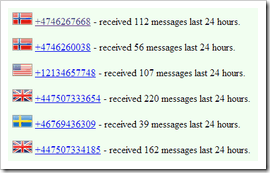
  1. recieve-sms-onlineReceive SMS Online - is the first recommended website for online sms verification, well you get few numbers from different countries mentioned on this website like in the image on the right that you can use on any online website to get messages delivered online and do attempt a successful sms verification.
  2. Receive SMS - this is another website that allows you to receive sms online on any number mentioned on this website, well you can pick up an number and receive messages on that number easily.
  3. Receive E-SMS Online - is a spam free online sms receiving website that allows you to receive sms online for sms verification. So now if your phone battery is low or you find any problem using your phone then just use this website to do stuff.

Online Free SMS Verification Procedure

So now just pick up any website from above that working perfectly for you and follow below steps in order to bypass online sms verification for any website.
  1. After Signing-Up for any website you come across the sms verification option, just open any website from above and enter the number mentioned on those websites.
  2. Now after entering that number hit Submit and in few seconds you will receive message on that number so click on that number to see all the messages received.
  3. sms-verification-onlineNow you will see messages for that number like in the image on the right. So now just wait for some seconds and refresh the page to see your verification message.

  4. So now as soon as you receive message from the website you have Signed-Up for, just copy that number or verification code and enter that on the website page and hit Submit.
That's it now your online phone sms verification will be completed up and you will have a verified account that you use for genuine purpose. Well its only recommend if you seriously do not have phone and you are stuck in some serious problems else this online verification could snatch your privacy by displaying your message to people publicly. So use this service with caution, have fun and enjoy :)
Best WhatsApp Tricks and Tips 2015


Best WhatsApp Tricks and Tips 2015 - Unknown & Amazing !!!

Whatsapp Messenger is now the best smartphone mobile messaging application that we have seen till now.It has got unique and truly unbelievable features which has priced at $ 22 Billion.We all know that Facebook CEO Mark Zuckerberg has recently made the deal to purchase and Acquire Whatsapp or $22 Billion which was confirmed in the month of September,2014.We can expect how huge can be value of Whatsapp messaging app as it is priced so high.Every month more than 400 active users are seen on Whatsapp  which is very close and near top beat the record of Facebook.The main reason why most of the people are attracted to it as because it gives you fast blazing messaging service which is truly awesome.It also has some other features which are good to see and use as well.
top 10 Whatsapp Tricks
It has got  a Better UI design which can be understood by any new users and User interface is quite predictable than other messaging applications.SO I am going to share some of the most beautiful tricks and Tips for Whatsapp messenger.I will be teaching you some of the best Tips and Tricks like how to hide your last seen,Then Hide your Status and Profile picture easily.Use whats app for life long and then more good tips and tricks.So, 'let's get started and get unknown to the best tips you can learn for Whatsapp.
Must See :       Dual Whatsapp Account


Whatsapp has become of the largest used messaging application and it has been released for different operating systems too.It is released for all versions of Android, IOS ( Iphone and Ipad) , BlackBerry, Windows Phone,Symbian, Nokia and Java.It provides you the ultimate features of sending message to anyone unlimited and there are not restrictions.You can send files, Video and Pictures also.

Best 20 Whatsapp Tricks
I will be showing you some of the most asked and unpredictable Whatsapp tricks you can ever imagine.You can simply make use of these simple Whatsapp tricks and Tips if you follow my whole guide of Tricks and Tips.

1.How to Use Whatsapp without Using any Mobile Number

Here is the best ever Whatsapp trick you can know.Using this trick you can install Whatsapp without having a mobile number.This trick is really awesome as it requires no SIM Card at all or usage of mobile number for registration.
  • Firstly Un Install Whatsapp and Then Re Install it
  • During the time of Verification it will ask to verify your mobile number
  • Then put your mobile device on flight mode to block all out going messages easily
  • Make sure you have installed Spoof for Android firstly
  • Now you have to chose an alternative method to verify Whatsapp.Then , check " Verification through SMS" and give them your email details and click on send
  • Instantly without waiting for any more time, you have to click on cancel and the whole process will be terminated
  • Now open the fake messaging application " Spoof' and use the below details likely
To: +447900347295
From: +(Country code)(mobile number)
Message: Your email address
  • Your Spoof app will get the verification code now and happily you can use it to verify your Whatsapp account without mobile number

2. How to Hide your Mobile Number in Whatsapp Groups

We all do Group chatting and most of the times we come known to unknown people during chats and messages in groups.There is an little awesome trick which can help you to hide your phone number on Whatsapp account during Group chats.
  • First Un Install and Then Re-Install Whatsapp on your Mobile phone
  • At the time of Verification of Mobile number you have to keep your mobile on Flight mode
  • Now click on " Verify through SMS' and then after enter your Email ID, then click on send button
  • In a second click on Cancel which will terminate the whole process
  • click here  to Download Spoof Text Messages to spoof your message 
  • Then go to the outbox and copy all the details of spoof application and then send it spoofed verification
  • You can use below details
To: +447900347295
From: +(Country code)(mobile number)
Message: Enter you email id
Sometimes later the messages will be sent to that spoofed number and it will appear to all in Group chats than to use your Original number.
Must See: Download Whatsapp For Nokia ASHA

    3.Password Lock For Whatsapp * - Best Lock Trick for Whatsapp Account

    We all know how important any account is.so we need to play safe with our accounts.I will be showing you how you can add Password security to your Whatsapp account.SO, that it is safe and no one other can track in or use it unwillingly.

    You can use Smartphone security/lock apps to secure your Whatsapp but the best one i would suggest it to use Whatsapp Lock.

    • You Can Download Whatsapp Lock application from this download link
    • Then Install it on your Smartphone and add a Password to secure your Whatsapp account from everyone

    4.Attach and Send PDF, APK and Zip File Extension Via Whatsapp

    Whatsapp does not allow you to send other file attachments.SO, you won't be allowed to send PDF,APK and Zip file extensions Via Whatsapp messenger.I will be showing you how you can send PDF,APK files through Whatsapp.

    • Download and Install ' Whats Packed 2 ads" application
    • Then you will be able to send any PDF, APK or Zip file to anyone in your Contacts
    • Receiver also need to install this application

    5. Run Multiple Whatsapp Accounts On Android ( More than one Whatsapp account on single Android device)

    We all know that Whatsapp only supports a single number through one Android smartphone.We cannot add or have multiple Whatsapp account running on one Android device. Now do you want to know how  you  can easily add multiple accounts to your Android device.We will be using Switch Me app on your Android device to control one or more Whatsapp account on single Android smartphone and Tablet.

    • You have to download and Install SwitchMe app on your Android device firstly
    • After that add one or more accounts using this simple app
    • Switch Me application allows you to handle more than one Whatsapp account, data and storage.

    6. Extend Whatsapp Trial Period - Get More free Trail Period even when its over

    We all know that Whatsapp ask for $0.99 after one year of usage and its compulsory.SO, we either have to buy the package for one more year or let our Whatsapp accounts rust to dust.Using this short and simple trick you can extend the free trail period of your Whatsapp for one more year.This trick is really simple and finely working.You can get on more year extended free trial period.You don't have to pay any single penny for this purpose.
    When your free trial period is going to be completed, then finally delete your Whatsapp account.After that you have to create a new account.The whole process will be done in 5 minutes or less but you will be getting one more year of Whatsapp free account.
    • How to Delete your Whatsapp Account
    • Go to Settings and click on Account
    • Then click on  " Delete my Account" option
    After that create anew account using the same name and details and you will see the free trial being extended.You can save your data first and re upload it for the new account.

    7. Best * Recover Deleted Whatsapp Conversations - Recover Deleted Messages and Chats

    Sometimes you might delete your Whatsapp messages or conversations.Accidental deleting messages would go so wrong as messages might be very of interest and value.You need to know that Whatsapp always backups the messages and stores them in your memory.Then this trick is for you to get back all your messages easily.

    Trick

    • Uninstall Whatsapp and Then Re-install it after sometimes
    • It will ask to restore all your history , Data and messages and click OK for it
    • Now after Re installing you can see all your messages are back there

    How to Use WhatsApp on PC – Download & Install WhatsApp on PC

    Download WhatsApp for PC/Laptop Free – Use it on Web Browser Windows/MAC[Official]


    Popular instant messaging app WhatsApp had made the availability of the web client for its users. WhatsApp has been surprising its users with the ban of 24 hours on the users who had been using the mod version of it WhatsApp Plus and now launching the Web client the very next day called “WhatsApp Web” which allows the users to respond and text to their dear ones right from their web browsers instead swapping between the two screens of smart devices while working on big screen of their laptop/desktop. Doesn’t that sound fascinating? Well, you ought to try this out. WhatsApp web is the simple extension of the smartphone as though you respond through the web browser still you can avail those messages in your smartphone.

    Use WhatsApp Directly from Your Chrome Browser

    Redefine the way of texting and messaging from today using a WhatsApp instant messenger. The mobile messaging service has introduced a new feature by which users can access it even through a web browser. Here is a new way to use WhatsApp from your computer which is called WhatsApp Web. What all you ought to do is that simply browse to WhatsApp Web at https://web.whatsapp.com using Google Chrome web browser as right away this feature is available only with the Google Chrome web browser. Though, WhatsApp has assured that it will come up with the supportive version of WhatsApp Web of other web browsers soon.
    WhatsApp Releases Web Client WhatsApp Web Allowing Users to Use it on Web Browser

    How to use WhatsApp Web in Google Chrome web browser?

    Using WhatsApp in your Google Chrome is an easy process while what all you need to have is that the updated version of WhatsApp in your smartphone. Here is a simple guide which you to use WhatsApp Web in your PC/Laptop/Desktop;
    Step 1: Navigate the WhatsApp Web official web page or CLICK here.
    WhatsApp Releases Web Client WhatsApp Web Allowing Users to Use it on Web Browser
    Step 2: Open the WhatsApp App on your phone. Click the menu button on the right top and select WhatsApp Web.
    WhatsApp Releases Web Client WhatsApp Web Allowing Users to Use it on Web Browser
    Step 3: Scan the QR code with your smart phone on your browser to be paired with the two devices.
    WhatsApp Releases Web Client WhatsApp Web Allowing Users to Use it on Web Browser
    Step 4: Stay connected with the Internet on both the devices which is must.
    WhatsApp Releases Web Client WhatsApp Web Allowing Users to Use it on Web Browser
    Step 5: Text messages to your dear ones and respond to the text messages right from your browser.
    Step 6: Congrats! You are paired and enjoy texting to your friends.
    Note: Get connected your smartphone with Wi-Fi Network to avoid excess data charges from your operator.
    If you wish to quit out of WhatsApp Web then click on the menu in the web and click log out to come out of the web version. If you have been pairing your smartphone with multiple laptops/PC’s then click “Log out from all computers” to log out from the every browser, you logged. Despite all pros, it has a demerit which is WhatsApp Web doesn’t allow it users to change or create groups. and to delete messages or clear the chat conversations.

    Great News for Android, Windows Phone, BlackBerry and Bad News for iOS Users

    Unfortunately, WhatsApp Web, this new feature of WhatsApp might be disappointing for the users of Apple smart device as the newly launched WhatsApp Web unavailable for them, due to “Apple platform limitations”. While it is great news for the users of Android, Windows Phone, BlackBerry, or BlackBerry 10 smartphone users across the globe. You can now use WhatsApp straight from your Desktop. Apple users there is news which may give you a sigh of relief, which is WhatsApp Web is made iOS-friendly in the near future so that Apple users can make their messaging easier as well. What are you waiting for just share this news with your friends and stay connected with us for more updates.
    Check this : Best Whatsapp Tips and Tricks (Use two numbers, send PDF files, Change friends profile picture and many more)

    Old Traditional Method to Use Whatsapp on PC using Bluestack and Youwave(Alternate Method):

    • Are you in search for finding out How to Use WhatsApp on your Computer at your own comfort? In this tutorial we described a step by step tutorial on downloading and installing whatsapp on your PC either it might be Windows or Mac machine.

    Features of Whatsapp for Android, iOS and PC:

    We will start with sharing features and configuration details of WhatsApp first on your computer and later follow it by sharing the installation guide. This will provide complete information to you and that too in a very simple way.
    • Whatsapp is well-known for its fast and free service.
    • Whatsapp delivers messages instantly all over the world.
    • You can even send unlimited Images and Videos using whatsapp but the video clip size is the only constraint,anyways one can send a video up to 16mb but not exceeding it.
    • Whatsapp has very nice interface and unique way to sign up.
    • Privacy is the most important thing in case of any Messenger. Whatsapp recently included privacy settings using which you can select the contacts to whom you want to share your last seen, status and DP.
    • Whatsapp is same for every operating system, no matter what operating system it is running on it always boots fast and runs smooth.
    • Many apps and games which you download from play store serve ads which might be irritating, but whatsapp don’t sell any adds which make it more user friendly.
    • You can share your chat conversation with others via Email.
    • Similar to Facebook you can create any number of groups in whatsapp and have a group chat with all the members of group at once.
    • There is one disadvantage in Whatsapp for PC  that you cannot import your contact list from mobile to PC.
    • You have to add contacts manually in WhatsApp on PC. But you have to do it once only and then enjoy using Whatsapp on PC.

    How to Use WhatsApp on PC:

    Using Whatsapp on your PC is pretty much straight forward.All you need is a Android Emulator to sync android apps on your Windows or Mac Operating System.

      Related Link :  Install Bluestacks in Windows 8.1/8/7 Without Graphic Card Error 25000


    HOW TO USE WHATSAPP ON PC WITH ANDROID?

    • First of all you need to download the Android Software from the official website.
    • Its available for Windows 7, Windows 8, 8.1 as well as Mac OS X, so download and install it for your respective operating system.
    • After its successfully installed please launch the program and then you will be asked to connect it with Google Plus account.
    • Connect it and you will be able to see the Andyroid Interface like you see in your smartphone.
    • That’s it, now you can use it as normal smartphone.
    • Go to Google Play Store in Andyroid and search for “WhatsApp”, download and install it.
    • Now, you can use WhatsApp for PC available on Windows 7/8 anytime.

    download whatsapp for pc using android

    Step by Step Guide to Download and Install WhatsApp on your PC:

    • First Download Bluestacks
    bluestacks+for+windows+and+mac
    • Choose the operating system which you are using either it might be Windows or Mac and download the respective version and install the app.
    If you are getting some error like “The application failed to initialized properly (0xc0000135) . Click on ok tp terminate the application”,then .NET framework is missing on your PC.Click Here to Install latest Version of .NET Framework.
    • After installing Bluestacks open the Software and there you see some already installed apps.
    • Click on Search button and search for WhatsApp.
    • Then you will be suggested different places from where you can get Whatsapp App. I prefer Google Play,so just click on Whatsapp Status Messenger on Google Play column and install the app.
    • After installing the App open it then you have to Choose your Country and Enter Phone number to start using Whatsapp on your PC.

    Sync your mobile apps using Bluestack Cloud connect:

    • Open the BLUESTACKS application and Click on the settings button at the right end.
    • Choose the first option “cloud connect“.
    • A box opens select “yes” and click on next.
    • Enter your email address , Mobile number and click on “Register“.
    • Now you will receive a email with a Pin number.
    • Now take your android mobile and Go to market place and search for “Bluestacks“, Download and install the application.
    • Open the application and enter the pin number that you received.
    • That’s it now you can Sync any application on your mobile with your PC.

    Steps to Change Whatsapp Status:

    The status feature in WhatsApp is a real time indication of what you are doing so that you can keep up to date with your contacts. To set your status:
    • Open WhatsApp and tap the three dots in the bottom right.
    • Select settings in that profile.
    • Click on the pencil icon to open the status screen.
    • Tap the text box to write a personal Whatsapp status.

    Steps to Change Whatsapp Profile Photo and Name:

    Changing profile picture and name in Whatsapp is quite a simple process too. To change your Profile Photo
    • Open your whatsapp messenger and tap the three aligned dots on the top right hand side of your screen.
    • Select the ‘settings’ option from the list that is displayed there. Choose the ‘profile’ option.
    how to change whatsapp profile pic
    • Now click on edit on your pic.
    • Now you can change your Profile pic.
    • Tap the text box under Enter your name to change the name that is visible to your contact


    IPHONE 4 BYPASS ICLOUD ACTIVATION

    Hacktivate iphone 4 cdma gsm all version/ Bypass Activation / Bypass icloud setup

    Please only use this in case you have the broken wifi or iphone shows error on activation or you want to bypass setup.

    Requirements only on WINDOWS 
    1. JRE use latest (to run ssh.jar).
    2. Tiny umbrella or Reiboot ( when at last to exit your iphone from recovery mode ).
    3. WinSCP.
    4. mine lol.zip DOWNLOAD had all except Reiboot/tinyumbrella. 

    STEP 1. Connect your iphone 4 in dfu mode and run ssh.jar


    it will take your iphone in a Apple logo with the Restorartion bar

    and in the ssh.jar app you will see that ok
    and 127.0.0.1 at port 2022 and username:root and password:alpine

    LET SSH.jar RUN donot close

    sonot hurry up to launch winscp ;)

    STEP 2. Goto folder "after ssh tool" run stage00.bat


    you will see a command line black screen and it shows that it mounted mnt1 and mnt2 in iphone 4

    LET IT plink.exe RUN

     STEP 3. RUN WinSCP.exe login into iphone 4 at 127.0.0.1 port 2022 username:root password:apine

    Voila your are inside your iphone 4 Filesytem

    JUST DRAG FROM LEFT TO RIGHT TO COPY ON IPHONE 4 
    OVERWRITE ALL WHILE COPYING


    STEP 4. copy lockdownd file into iphone 4  /mnt1/usr/libexec Please donot copy lockdownd as it is patch and does not have signature so skipping this step works like charm. 

    STEP 5. copy lockdown whole folder in the /mnt2/root/library

    STEP 6. copy General.plist in the mnt1/Applications/Preference.app

    LOL you xxx the iphone 4 File system as it not virgin any more :P

    NOW HOLD DOWN IPHONE Home + Power button both till it flash and reboots


    STEP 7. It will boot into the recovery mode take him out by the help of Reiboot or tiny umbrella

    NOW DON OT PANIC YOUR iPhone will boot in little more time LOL its Psychological not Real (YOU think you took virginity lol)

    LOL fun to all iphone will ask BLA BLA and completes the Setup Process
    AND connect to itunes make backup install APPS blalalalal

    ALSO JAILbreak it with the help of PANGU 1.2.1 ( let pangu tooooo :XXX:)
    have funnnnnnnnnnnnnnnnn